UI Testing
This module uses visual regression testing to verify that UI components render correctly. Tests run headlessly using Qt's offscreen platform, capture widget screenshots, and compare them against stored reference images.
Prerequisites
Install the test dependencies (defined in pyproject.toml under [project.optional-dependencies]):
pip install -e ".[test]"
This installs:
| Package | Purpose |
|---|---|
pytest | Test runner |
pytest-qt | Qt widget lifecycle helpers (qtbot) |
pytest-regressions[image] | Image snapshot comparison |
Running Tests
Run the full UI test suite:
pytest tests/client/ayon_core/ui/
Generate (or regenerate) reference images when adding new tests or intentionally changing component appearance:
pytest tests/client/ayon_core/ui/ --force-regen
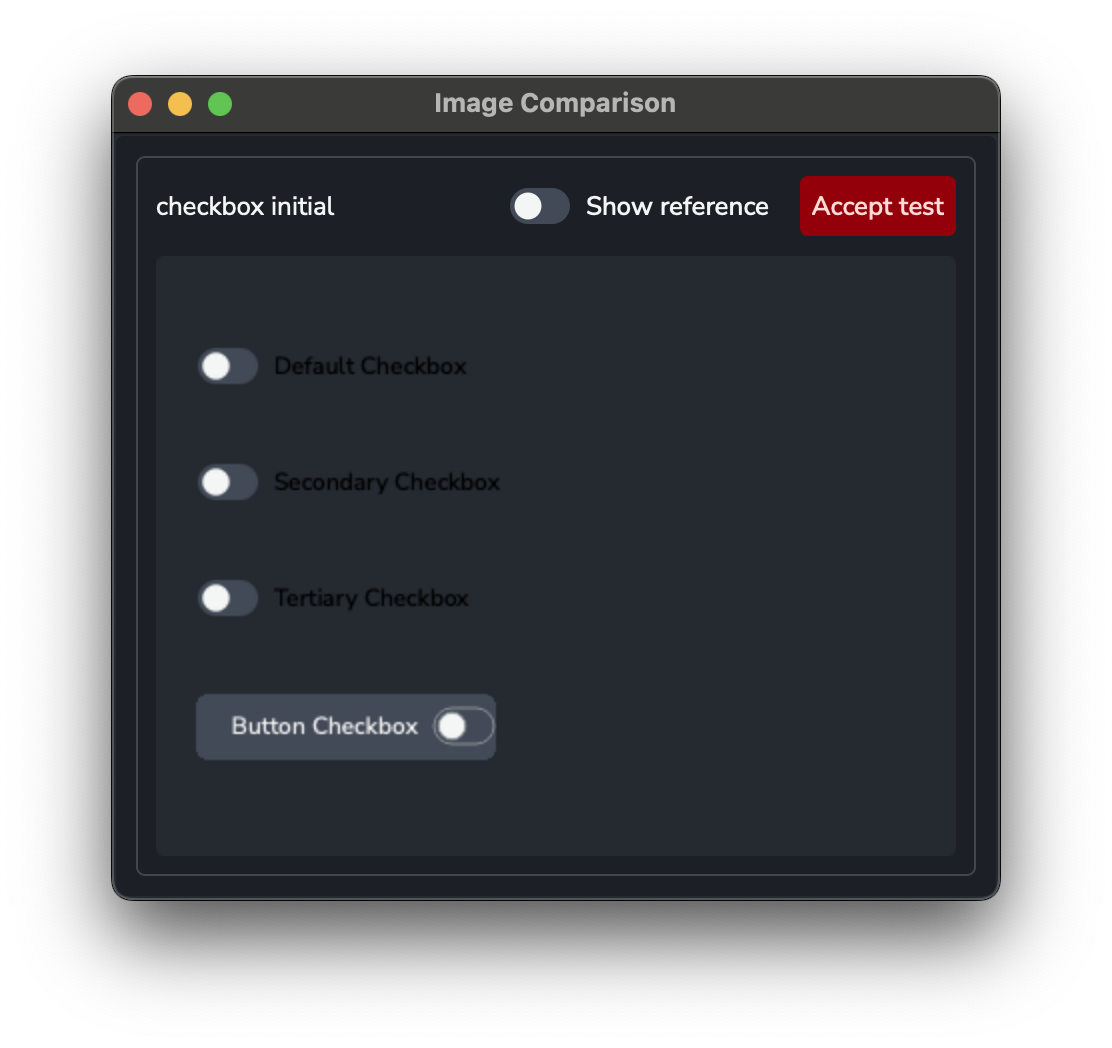
When tests fail due to pixel differences, open the visual comparison viewer to inspect results and optionally accept them as new baselines:
pytest tests/client/ayon_core/ui/ --show-images
Test Structure
tests/client/ayon_core/ui/
├── conftest.py          # Sets QT_QPA_PLATFORM=offscreen before any Qt import
├── test_visual.py       # Auto-discovering runner — generates parametrized tests
├── visual_utils.py      # capture_widget() helper
├── widget_test.py       # WidgetTest base class
├── components/          # One test_*.py file per component
│   ├── test_buttons.py
│   └── test_check_box.py
├── utils/               # Shared test utilities
│   └── composite_widget.py
└── test_visual/         # Reference PNG snapshots (committed to version control)
    ├── ButtonTest_00_initial.png
    ├── ButtonTest_01_check_all.png
    └── ...
Headless rendering
conftest.py sets QT_QPA_PLATFORM=offscreen before any Qt import happens. This allows all tests to run without a display server or visible windows.
Test runner (test_visual.py)
The runner scans tests/client/ayon_core/ui/components/ for any module whose name starts with test_, imports it, and collects all WidgetTest subclasses. For each class it generates two groups of pytest items:
test_initial— snapshot of the widget in its initial state before any steps are applied.test_steps— one parametrized test per step callable, applied cumulatively up to and including the current step.
Snapshot naming
Reference images are saved in tests/client/ayon_core/ui/test_visual/ with the filename pattern:
{ClassName}_{index:02d}_{step_name}.png
- Index
00is always the initial state. - Subsequent indices correspond to each step in the order returned by
steps().
Examples:
| Filename | Meaning |
|---|---|
ButtonTest_00_initial.png | ButtonTest initial state |
ButtonTest_01_check_all.png | After check_all step |
CheckBoxTest_02_uncheck_all.png | After second step (uncheck_all) |
Writing a New Component Test
- Create
tests/client/ayon_core/ui/components/test_<component>.py. - Subclass
WidgetTestand implementbuild(). Optionally implementsteps().
# tests/client/ayon_core/ui/components/test_my_widget.py
from qtpy.QtWidgets import QWidget
from widget_test import WidgetTest
from ayon_core.ui.components.my_widget import AYMyWidget


class MyWidgetTest(WidgetTest):
    size = (600, 400)       # optional: widget dimensions in pixels
    tolerance = 0.0         # optional: per-pixel diff tolerance (0.0–1.0)

    def build(self) -> QWidget:
        self._widget = AYMyWidget()
        return self._widget

    def enabled(self) -> None:
        """Step: enable the widget."""
        self._widget.setEnabled(True)

    def disabled(self) -> None:
        """Step: disable the widget."""
        self._widget.setEnabled(False)

    def steps(self):
        return [self.enabled, self.disabled]
- Generate reference images for the new test:
pytest tests/client/ayon_core/ui/test_visual.py -k MyWidgetTest --force-regen
- Commit the generated PNG files from
tests/client/ayon_core/ui/test_visual/.
WidgetTest API
| Attribute / Method | Description |
|---|---|
size: tuple[int, int] | Widget dimensions applied before the first snapshot. Default: (800, 600). |
tolerance: float | Per-pixel diff tolerance passed to image_regression.check(). Default: 0.0. |
build() -> QWidget | Required. Create and return the widget under test. Store references to sub-widgets you'll mutate in steps() as instance attributes. |
steps() -> list[Callable] | Return an ordered list of callables that mutate widget state. Each callable is called once and followed by a snapshot. Default: [] (initial snapshot only). |
capture_widget utility
visual_utils.capture_widget(widget) renders a widget to PNG bytes using widget.grab(), which works under offscreen rendering without a visible window. The result is passed directly to image_regression.check().
How Snapshot Comparison Works
pytest-regressions stores reference images alongside the test directory. On first run (or with --force-regen), it saves the captured image as the new baseline. On subsequent runs it compares the captured image pixel-by-pixel against the baseline and fails if any pixel differs beyond the configured tolerance.
To update a baseline after an intentional visual change:
pytest --force-regen -k <TestClassName>
Inspecting Failed Image Comparisons (--show-images)
Pass --show-images to open a Qt window after the test run that displays every failed image comparison side-by-side.
pytest tests/client/ayon_core/ui/ --show-images
The viewer is launched in a subprocess without QT_QPA_PLATFORM=offscreen so it renders to a real display. For each failure it shows:
- The test name as a heading.
- A Test / Ref toggle — click either button to swap between the obtained screenshot and the stored reference.
- An Accept test button — copies the obtained image over the reference in
tests/client/ayon_core/ui/test_visual/, effectively accepting the new appearance as the new baseline. The button is disabled after clicking to prevent accidental double-acceptance.
--show-images has no effect when all tests pass.
Looking at all reference images (--show-refs)
You can also view all reference images without running tests:
python tests/client/ayon_core/ui/visual_utils.py --show-refs
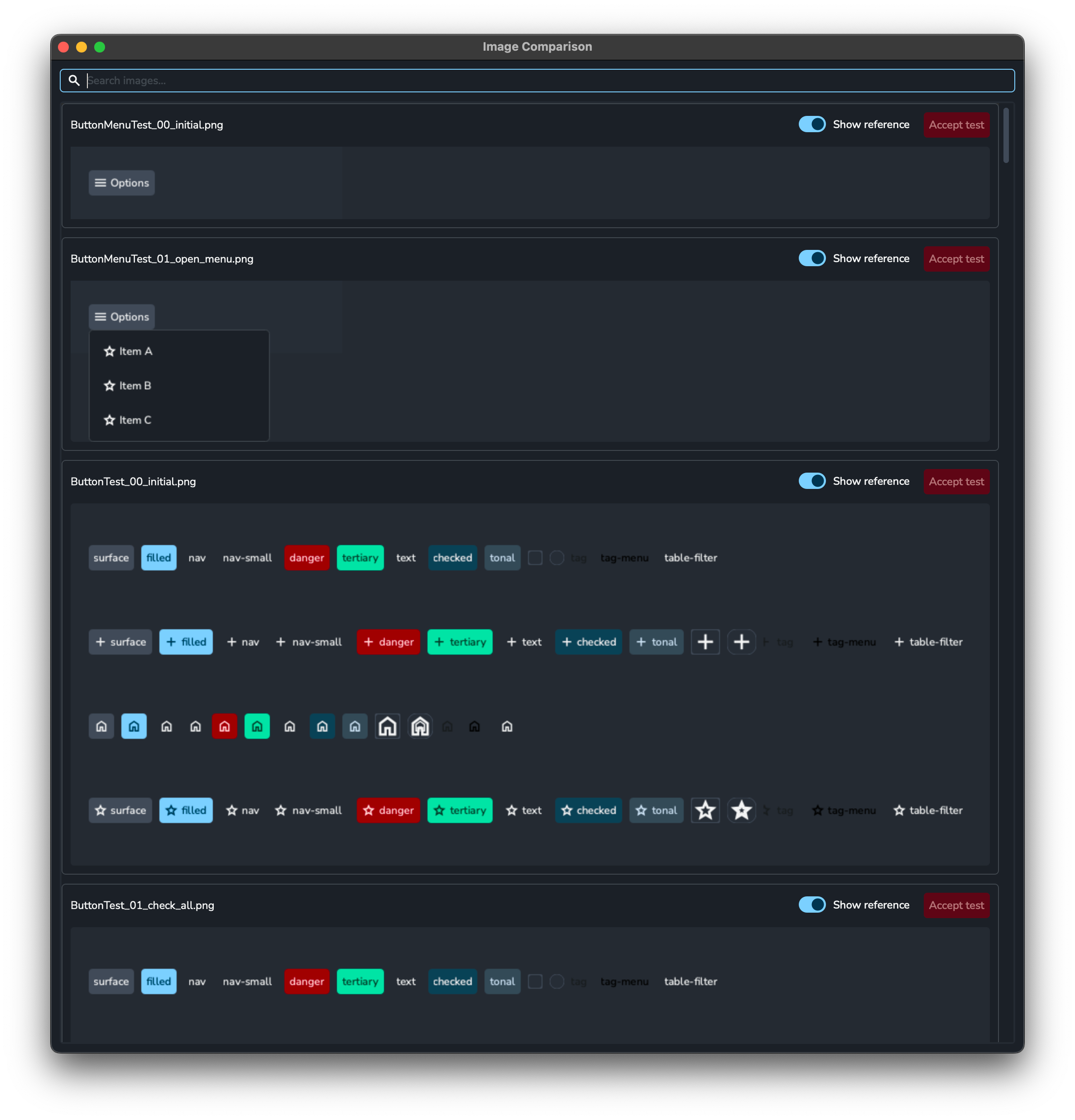
This is useful for verifying that the reference images are correct.
The viewer is the same as the one used with --show-images.